How to run Java Sample Code using the Hello World API and Mutual SSL
Tutorials
HelloWorld.java - How to run Java Sample Code using the Hello World API and Mutual SSL
In this "How-to" guide we will show you how to run the "Hello World" project using Visa Hello World API and Two-Way SSL (Mutual Authentication). The Hello World API is a simple API for testing the connectivity with the Visa Network.
Important Links:
- The endpoint for the Hello World API is https://sandbox.api.visa.com/vdp/helloworld
- How to work with Two Way SSL Docs: https://developer.visa.com/pages/working-with-visa-apis/two-way-ssl
- Login to Visa’s developer portal or sign up to https://developer.visa.com/
How to Create a Visa Developer Project
Before you are able to run the "Hello World" Project, you must create a Visa Developer Portal (VDP) project and get credentials. If you haven't registered yet just click on register here, fill out the account information, agree to the terms and conditions and click on receive emails. Once you have successfully activated your account, you will see your dashboard and you are ready to go.
Once you are there, click on create your first project if this is your first project. On the next page, you will be asked for details, such as project name, description and a list of APIs to choose from.
Zoom](https://developer.visa.com/images2/documentation/Project-name.png)
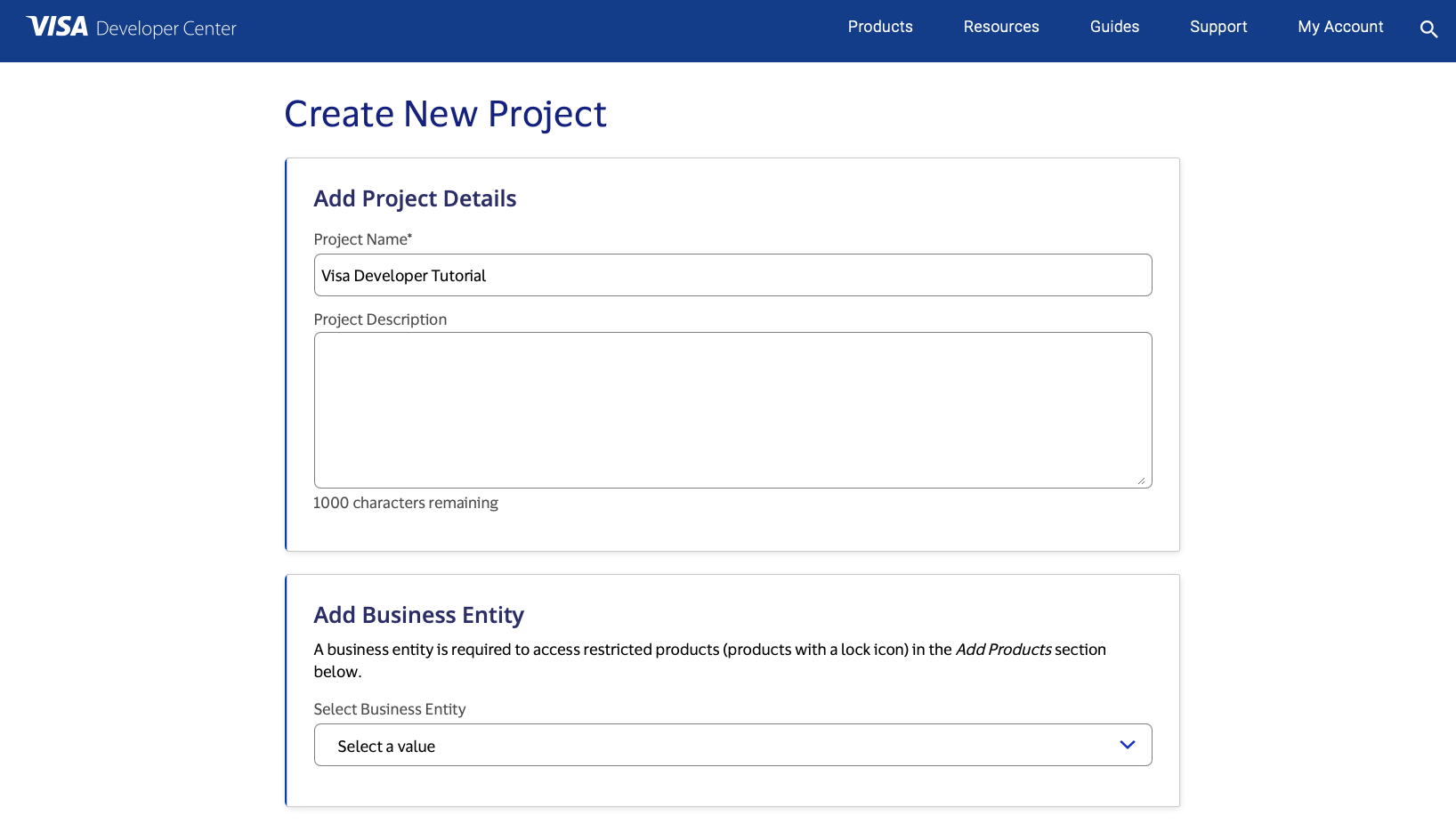
For this tutorial, we're going to select “Visa Direct” and click create project.
How to Get Credentials
After creating your project, you will be redirected to the project summary page. You can obtain your project credentials by selecting your environment on the left side navigation menu and then finding the "Credentials" section.
Zoom](https://developer.visa.com/images2/documentation/Credential-tab.png)
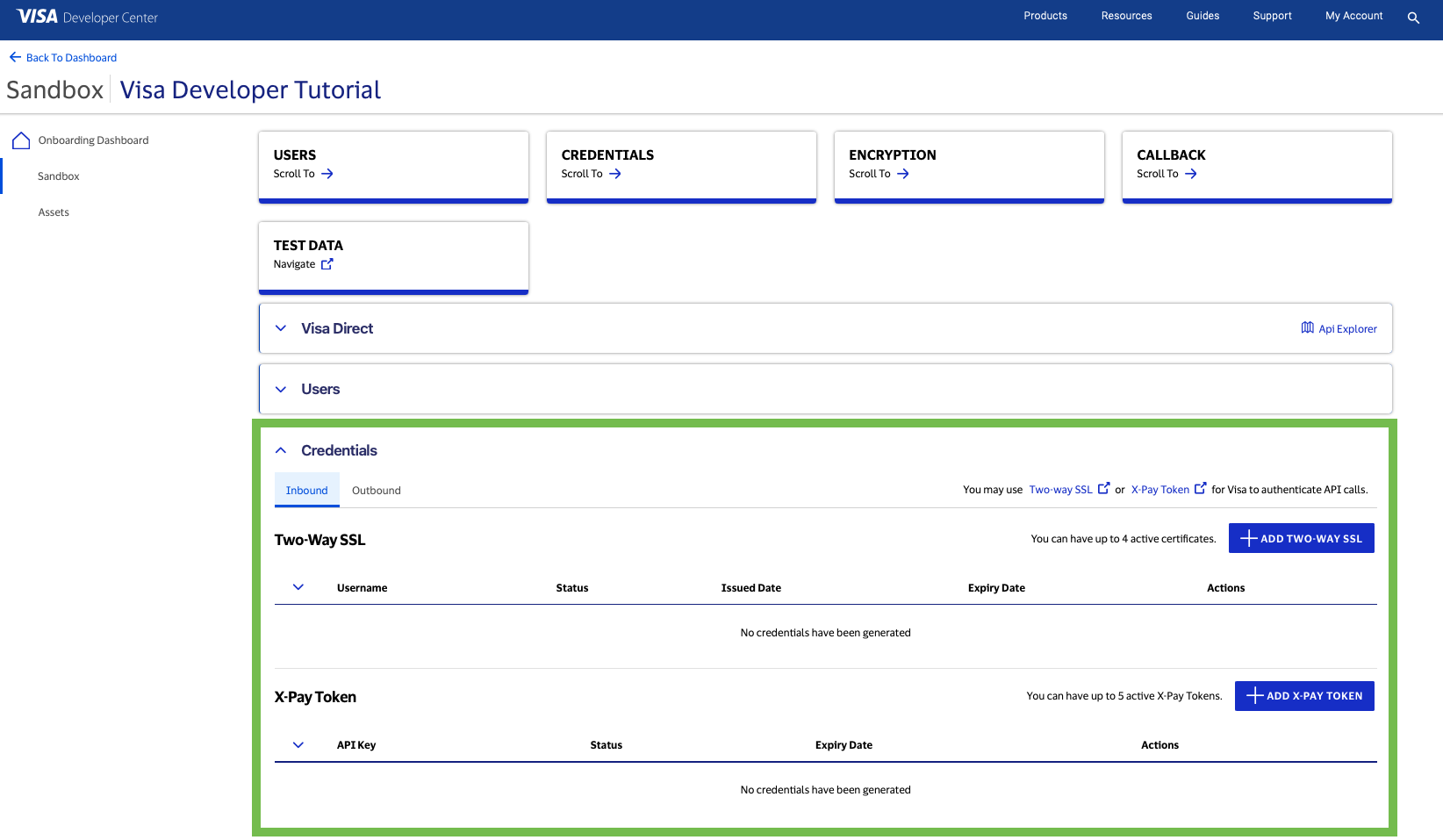
For more information, please visit our guide for Two-Way SSL.
What is required for the Two-Way SSL (Mutual Authentication)?
To establish a Two-Way SSL (Mutual Authentication) connection, you must have the following:
- private key
- client certificate
- certificate authority root certificate, and
- certificate authority intermediate certificates (Note: These certificates are optional for the Visa Developer sandbox)
Download the project certificate as well as the common certificates - Visa Developer Platform certificate and DigiCert Certificate.
Import an existing SSL certificate and private key to a keystore:
a) Convert the certificate and private key to PKCS 12
Place your private key file (for example: privateKey.pem and your certificate file from VDP (for example: cert.pem in the same directory. Generate a keystore (for example: myProject_keyAndCertBundle.p12) file as shown below.
Note: The myProject_keyAndCertBundle.p12 is only a placeholder file name. You may choose to name it anything else.
b) Run the following Java keytool command to convert your P12 file into a JKS file.
c) Run the following Java keytool command to validate the contents of your new JKS file.
d) Run the following command to add the root certificate to your JKS file.
e) Run the following command to add digicert to your JKS file.
How to run the Java Sample codes of the “Hello World API” using IntelliJ
Next, we'll show you how to run the Java sample code of the “Hello World API” using IntelliJ. IntelliJ IDEA is a cross-platform IDE that provides consistent experience on Windows, macOS, and Linux, and can be downloaded here. In IntelliJ IDEA, a project helps you organize your source code, tests, libraries that you use, build instructions, and your personal settings in a single unit.
Step 1: Launch IntelliJ IDEA
- If the Welcome screen opens, click Create New Project. Otherwise, from the main menu, select File | New | Project.
Zoom](https://developer.visa.com/images2/stock/tutorial-images/Java6.png)
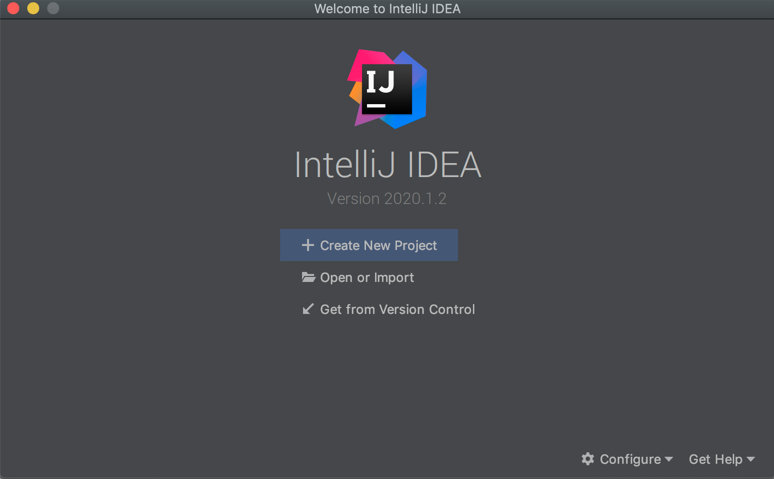
Step 2 - In the New Project wizard, select Java from the list on the left.
To develop Java applications in IntelliJ IDEA, you need the Java SDK (JDK).
- If the necessary JDK is already defined in IntelliJ IDEA, select it from the Project SDK list.
- If the JDK is installed on your computer, but not defined in the IDE, select Add JDK and specify the path to the JDK home directory.
- If you don't have the necessary JDK on your computer, select Download JDK.
We're not going to use any additional libraries or frameworks for this tutorial, so click Next. Don't create a project from the template. In this tutorial, we're going to do everything from scratch, so click Next.
Step 3 - Name the project
- For example: HelloWorld. If necessary, change the default project location and click Finish.
Zoom](https://developer.visa.com/images2/stock/tutorial-images/Java7.png)
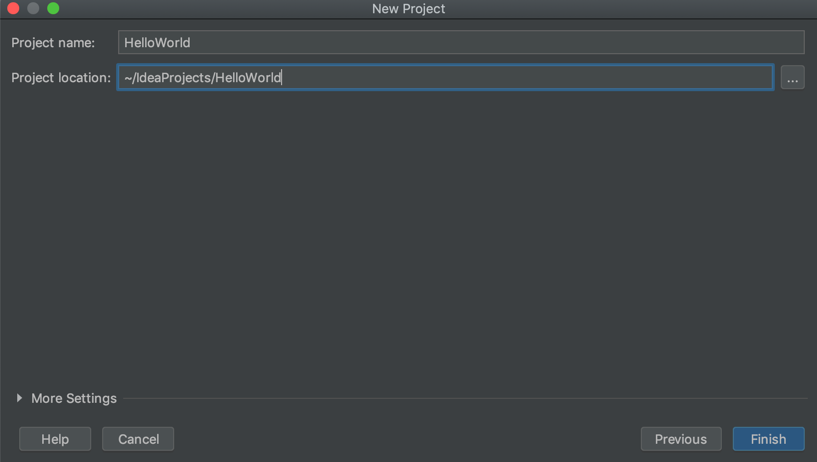
Step 4 - Upload the HelloWorld.java in the “src” folder
Zoom](https://developer.visa.com/images2/stock/tutorial-images/Java8.png)
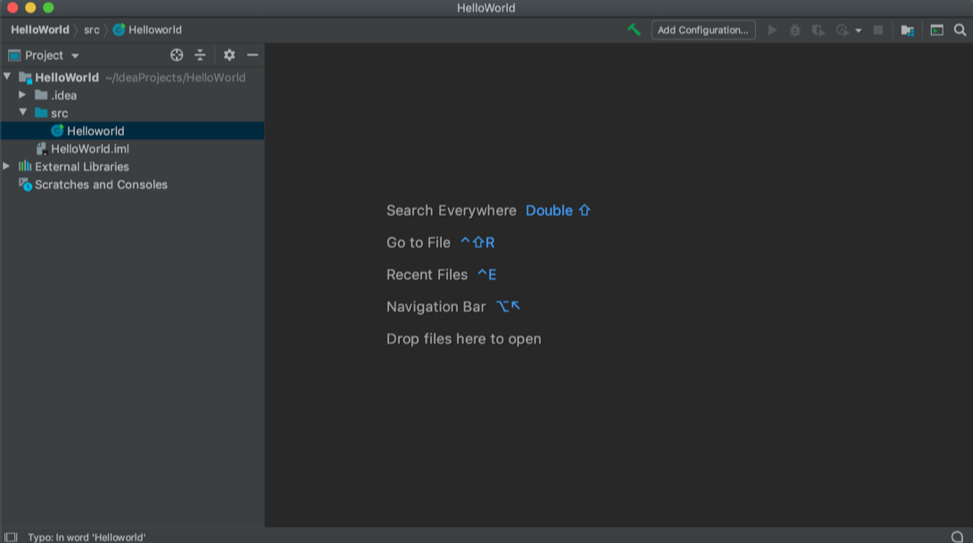
Double click on the file Helloworld.java (if it is not already open) and set the below parameters.
String keystorePath = "
String keystorePassword = "
String userId = "
String password = "
Step 5 - Compile Your Code
- Click the Run the Remove button in the gutter and select Run 'Helloworld.main()' in the popup. The IDE starts compiling your code. When the compilation is complete, the Run tool window opens at the bottom of the screen.
Zoom](https://developer.visa.com/images2/stock/tutorial-images/Java9.png)
