Additional Use Cases Token ID_V
Cardholder Verification as part of EMV Token ID&V
Issuers can perform identification and verification (ID&V) of their accountholders using EMV® 3-D Secure (3DS) for Visa Token Service (VTS) use cases such as token provisioning or Cloud Token Framework (CTF) device binding and cardholder authentications. The EMV 3DS 2.1 and 2.2 specifications define a non-payment message category and authentication indicator specifically for EMV® token ID&V.
ID&V authentication requests have the following fields set as:
- 3DS Requestor Authentication Indicator = 06 (Cardholder verification as part of EMV token ID&V)
It is recommended for issuers to present users authentication challenge flows specific to ID&V for ID&V authentication requests. Below are issuer EMV® 3DS ID&V challenge flow guidelines according to challenge method and device channel.
One-Time Passcode (OTP)
SMS/Email Requirements – Browser
Customers verify transactions using a secure code sent by text or email. Issuers can choose which delivery channels to make available for the customer. We recommend providing both to the customer. Once the customer successfully submits the correct OTP, the issuer ACS closes the challenge window and hands control of the experience back to the 3DS Server.
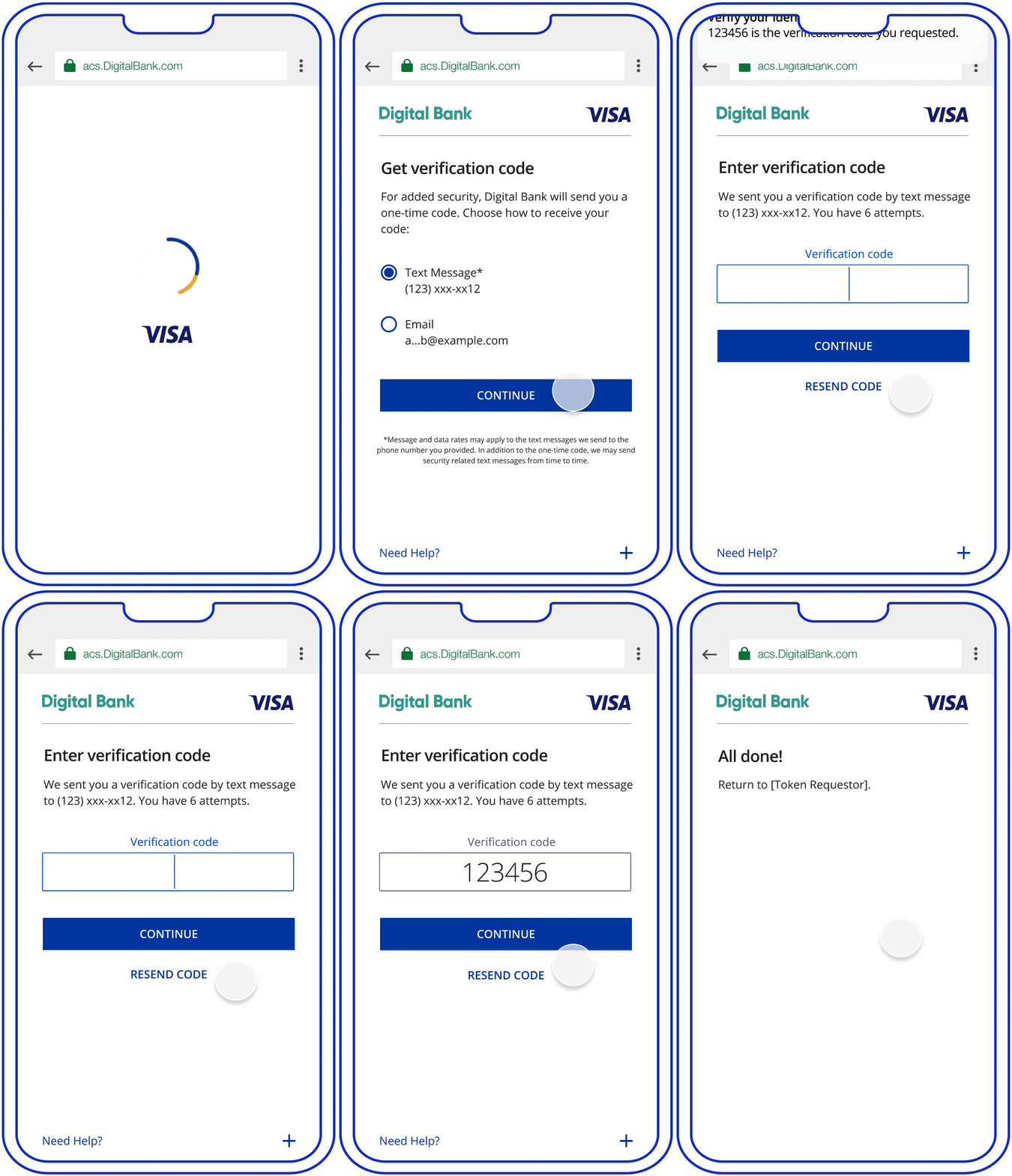
Key Screens
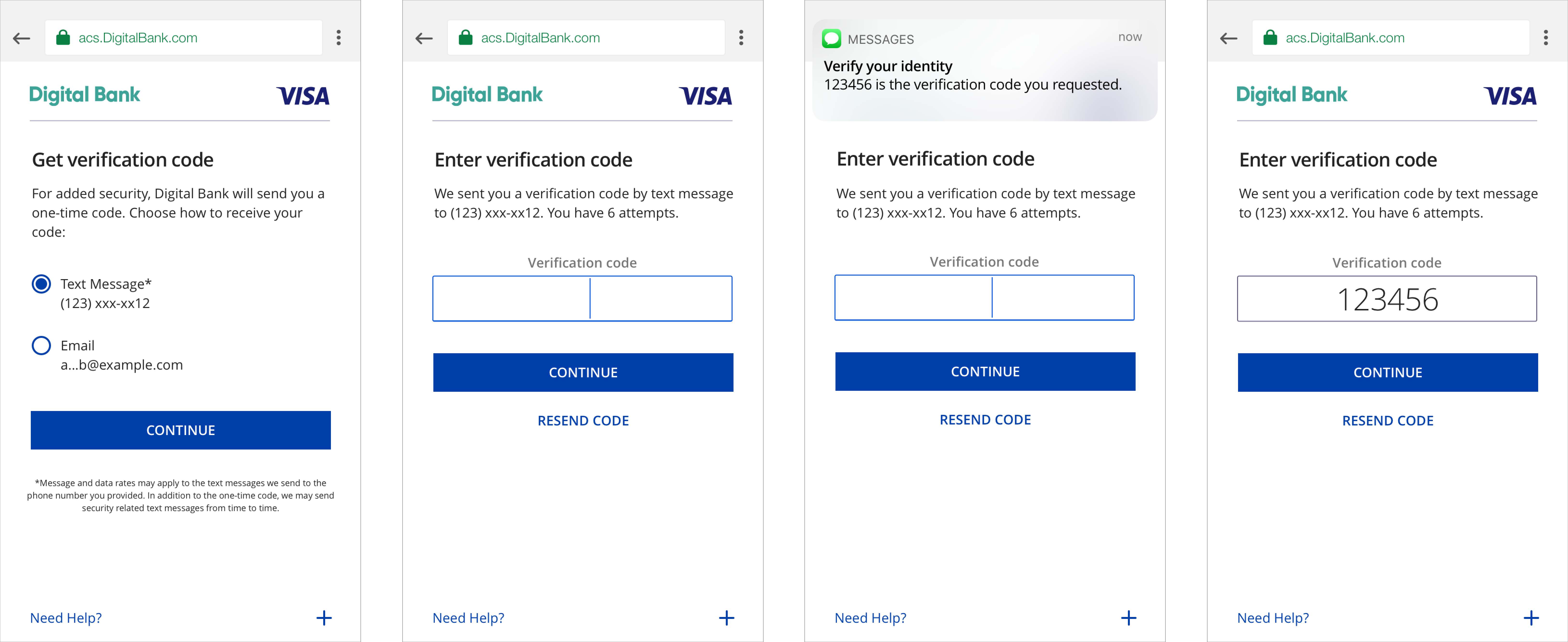
UX Elements
| Data Elements from EMV 3DS specification | Content/Requirement |
|---|---|
| Challenge Information Header OTP Choice Screen |
- The page must display the headline Get Verification Code above the Challenge Info text for OTP Choice Screen. |
| Challenge Information Text OTP Choice Screen |
- For added security, [Card Issuer] will send you a one-time code. Choose how to receive your code: - Radio Button: Text Message < - Radio Button: Email < |
| Challenge Information Header OTP Code Entry |
- The page must display the headline Enter verification code above the Challenge Info text. |
| Challenge Information Text OTP Code Entry |
- This text must include the following language: OTP by SMS: We just sent you a verification by text message to < OTP by Email: We just sent you a verification code by email to < |
| Challenge Information Label | - The display name for this field must be ‘Verification Code’. |
| Challenge Information Data Entry | - Input Box |
| Submit Authentication Label | - A form element that should align with the center of the bottom margin displaying “Continue”. |
| Resend Information Label | - The display name for this field must be ‘Resend Code’. - Challenge Information is resent to the customer. - A form element that should vertically align with the center of the bottom margin. |
| Why Information Label | - Display the Why Information Label as a graphical control element that can be expanded. - The display name for this field must be ‘Need Help?’. |
| Why Information Text | - Display the Why Information Text only when the user selects the “Need Help? Label”. - Text provided by the Issuer to be displayed to the cardholder to explain why the cardholder is being asked to perform the authentication task. |
SMS/Email Requirements – Mobile in-app native
Customers verify transactions using a secure code sent by text or email. Issuers can choose which delivery channels to make available for the customer. We recommend providing both to the customer.
In-app native experiences leverage the 3DS SDK. Native experiences provide a more merchant-issuer integrated look and feel for users. Native experiences do not leverage rich text.
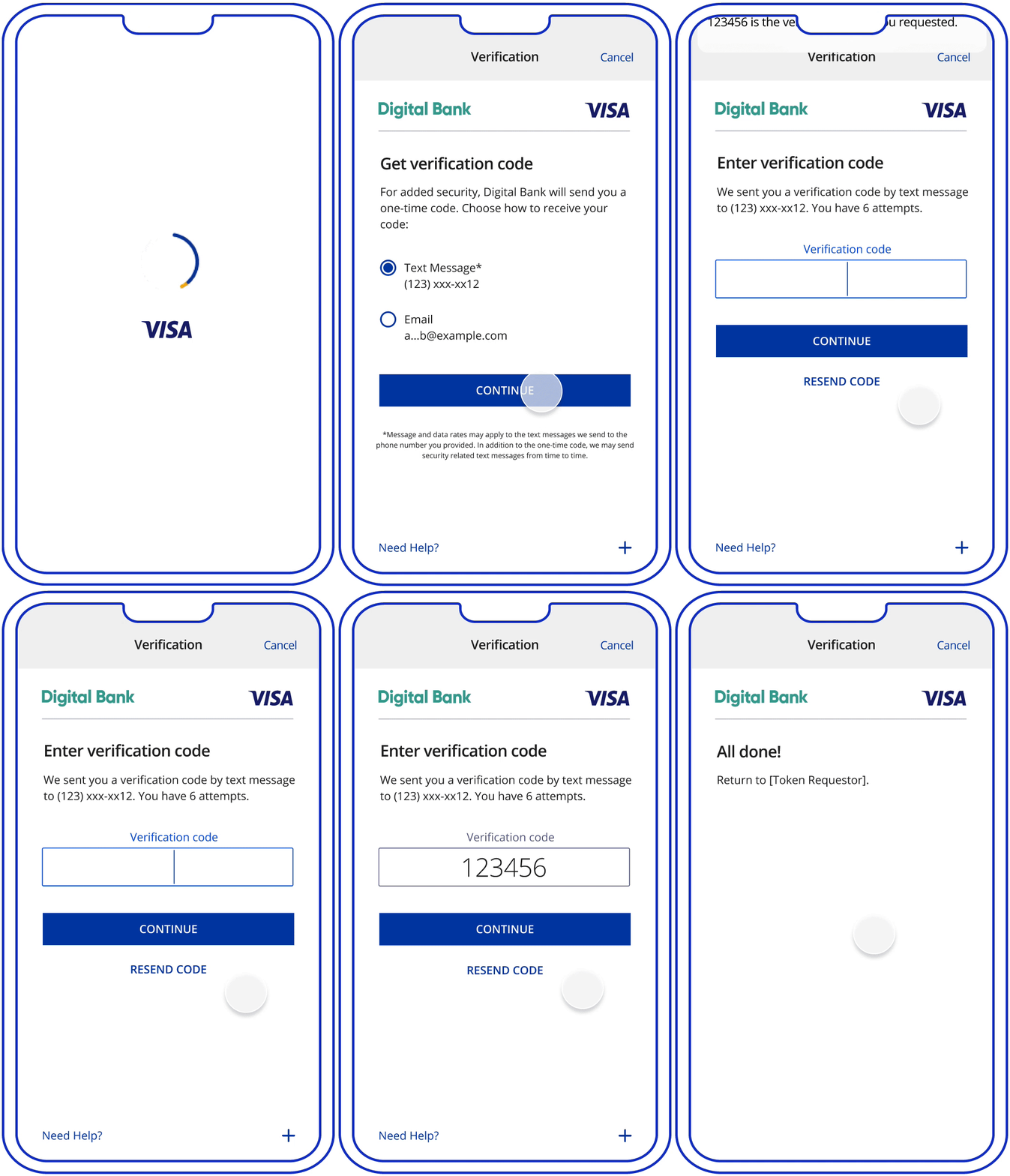
Key Screens
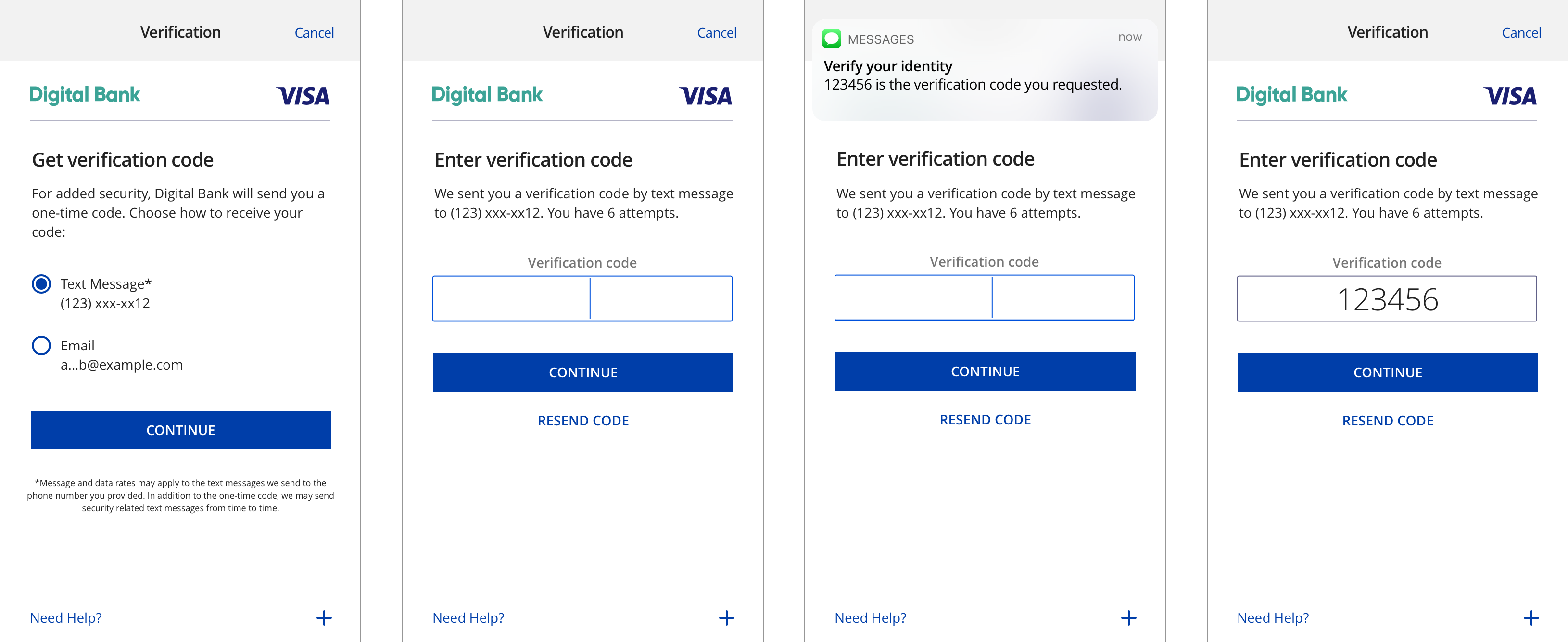
UX Elements
| Data Elements from EMV 3DS specification | Content/Requirement |
|---|---|
| Challenge Information Header OTP Choice Screen |
- The page must display the headline Get Verification Code above the Challenge Info text for OTP Choice Screen. |
| Challenge Information Text OTP Choice Screen |
- For added security, [Card Issuer] will send you a one-time code. Choose how to receive your code: - Radio Button: Text Message < - Radio Button: Email < |
| Challenge Information Header OTP Code Entry |
- The page must display the headline Enter verification code above the Challenge Info text. |
| Challenge Information Text OTP Code Entry |
- This text must include the following language: OTP by SMS: We just sent you a verification by text message to < OTP by Email: We just sent you a verification code by email to < |
| Challenge Information Label | - The display name for this field must be ‘Verification Code’. |
| Challenge Information Data Entry | - Input Box |
| Submit Authentication Label | - A form element that should align with the center of the bottom margin displaying “Continue”. |
| Resend Information Label | - The display name for this field must be ‘Resend Code’. - Challenge Information is resent to the customer. - A form element that should vertically align with the center of the bottom margin. |
| Why Information Label | - Display the Why Information Label as a graphical control element that can be expanded. - The display name for this field must be ‘Need Help?’. |
| Why Information Text | - Display the Why Information Text only when the user selects the “Need Help? Label”. - Text provided by the Issuer to be displayed to the cardholder to explain why the cardholder is being asked to perform the authentication task. |
Out of Band (OOB)
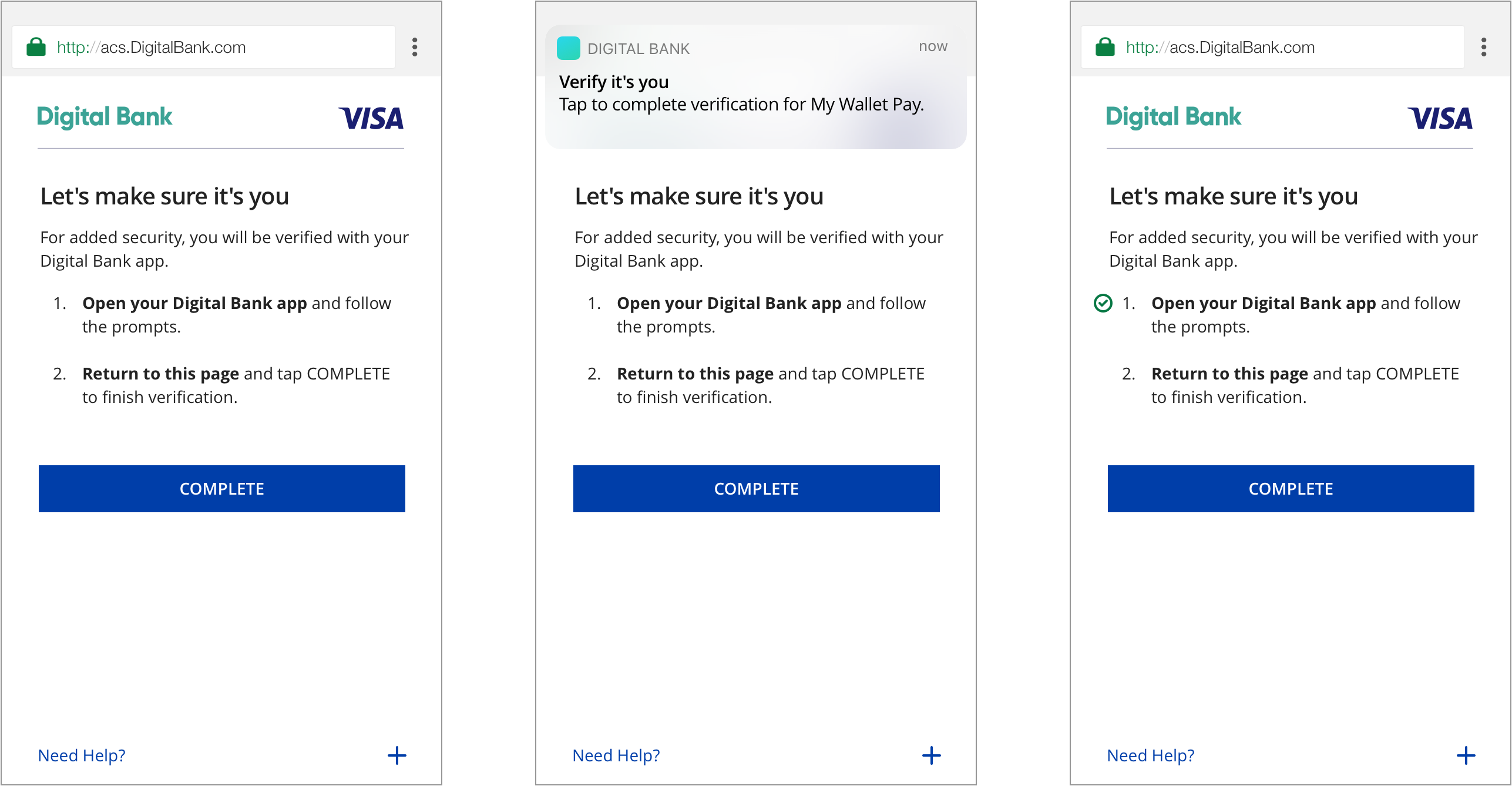
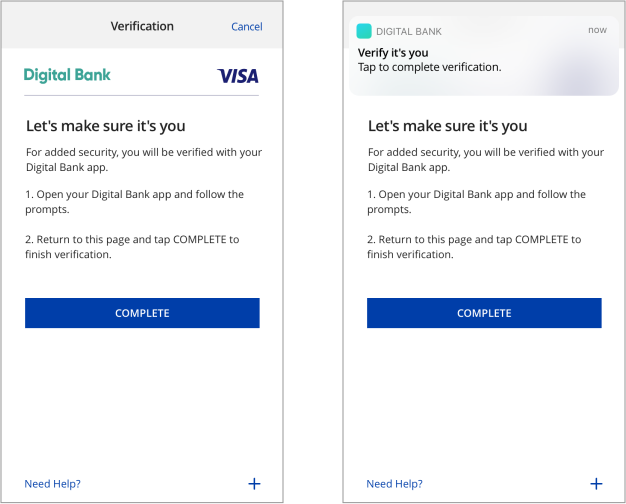
Users verify transactions in their issuer’s authentication service. Issuers can choose which service to make available for user OOB authentication, such as authentication through the issuer’s mobile application. Once authentication via the issuer’s OOB service is complete, users return to the issuer’s 3DS challenge screen and click “Complete” to finish 3DS strong authentication.
It is highly recommended that issuers send users a push notification to their OOB authentication service upon showing users the OOB challenge information text. This has been shown to improve the user experience by giving users a direct route to their issuer’s OOB authentication service, as opposed to manually navigating to it.
Zoom
Key Screens
UX Elements
| Element | Content/Requirement |
|---|---|
| Challenge Info Header | - The page must display the headline Let’s Make Sure it’s you above the Challenge Info text. |
| Challenge Info Text | - This text must include the following language: For added security, you will be verified with [Issuer OOB authentication service]. 1. Open the [Issuer OOB authentication service] to verify. 2. Return to this page and tap Complete after you have completed verification with [issuer OOB authentication service]. - The usage of rich text numbered lists and boldface fonts is recommended so that users can clearly understand the authentication steps. |
| Submit Authentication Label | - A form element that should align with the center of the bottom margin displaying “Complete”. |
| Why Information Label | - Display the Why Information Label as a graphical control element that can be expanded. - The display name for this field must be ‘Need Help?’. |
| Why Information Text | - Display the Why Information Text only when the user selects the “Need Help? Label”. - Text provided by the Issuer to be displayed to the cardholder to explain why the cardholder is being asked to perform the authentication task. |
Mobile In-App Native
Zoom
Key Screens
UX Elements
One-Time Passcode (OTP) & Knowledge-Based Authentication (KBA)
Mobile Browser
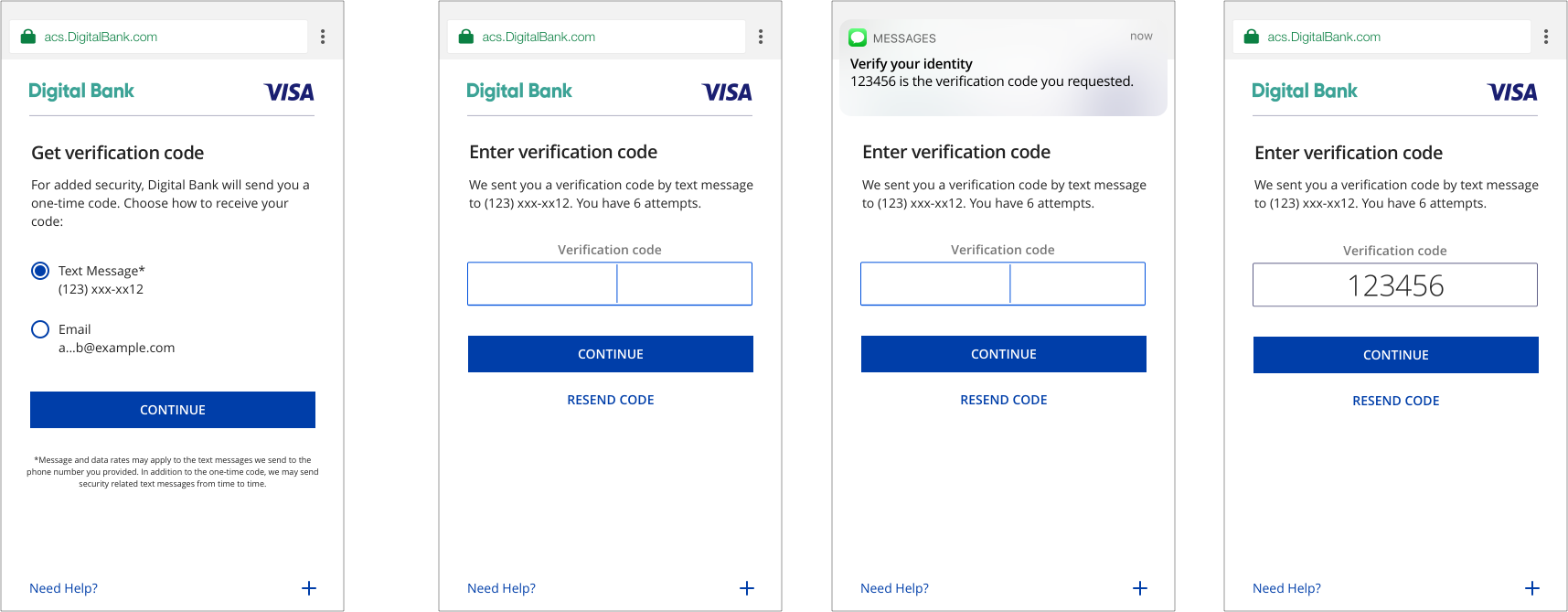
If an issuer is interested in performing multi-factor authentication, OTP and KBA challenge methods can be put together in sequential order. Customers perform verification by submitting a secure code sent by text or email and answering two security questions.
Zoom
Key Screens - OTP
UX Elements - OTP
Key Screens - KBA
UX Elements - KBA
| Elements | Content/Requirement |
|---|---|
| Challenge Info Header Challenge Page |
- The page must display the headline Answer Security Questions above the Challenge Info text. |
| Challenge Info Text | - The display name for this field must be Almost done! Please answer these two security questions. Question 1 of 2 {Question 1} and {the actual Question}. |
| Challenge Info Label If not a multiple choice question |
- The display name for this field must be ‘Your Answer’. |
| Challenge Info Data Entry If not a multiple choice question |
- Input Box |
| Challenge Info Label For multiple choice question |
- The display name for this field must be ‘Please select all that apply’. |
| Challenge Info Data Entry For multiple choice question |
- Multiple Check boxes |
| Submit Authentication Label | - A form element that should align with the center of the bottom margin displaying “Submit”. |
| Why Information Label | - Display the Why Information Label as a graphical control element that can be expanded. - The display name for this field must be ‘Need Help?’. |
| Why Information Text | - Display the Why Information Text only when the user selects the “Need Help? Label”. - Text provided by the Issuer to be displayed to the cardholder to explain why the cardholder is being asked to perform the authentication task. |